

Chat with your users straight from Slack, and get notified when a new conversation is started from NeetoChat.
Integrating Slack
Go to Admin Panel.
Under Integrations, click on Slack.
Click on Login To Slack.
-
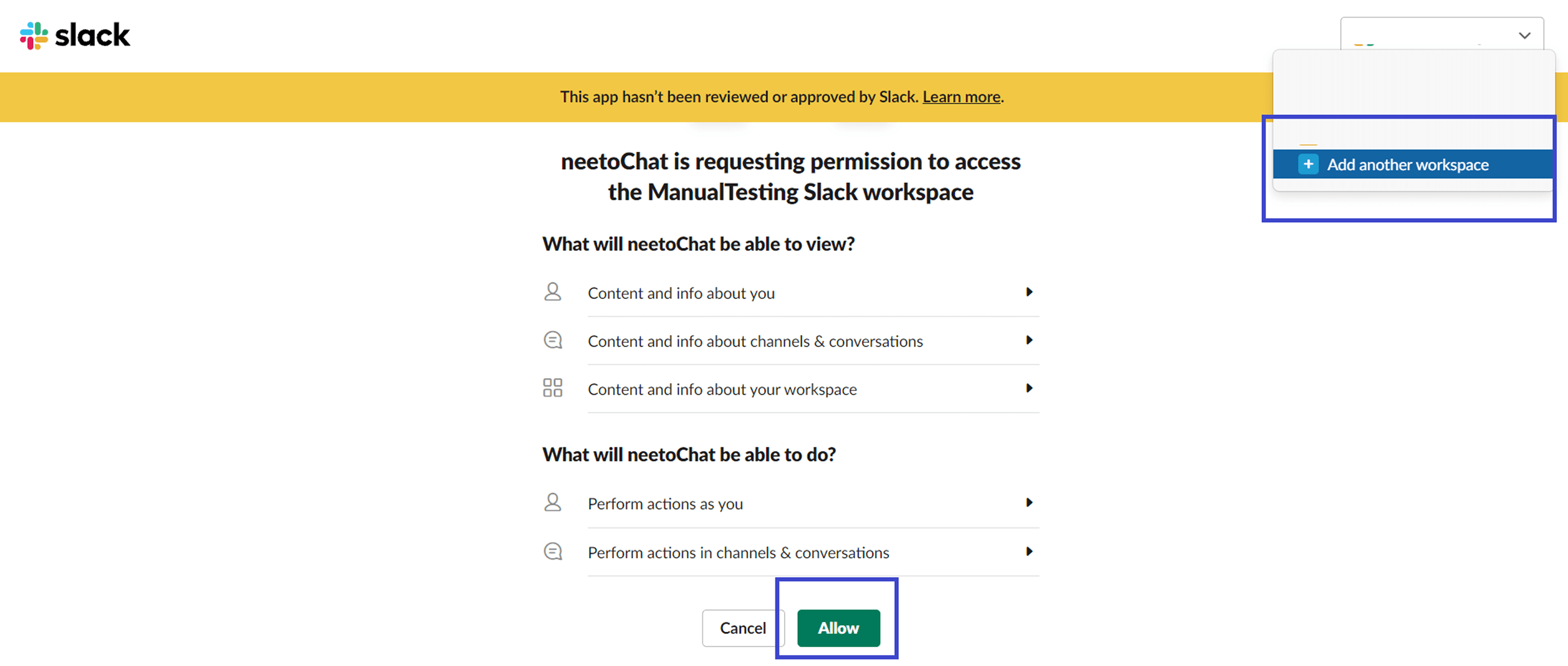
Select an existing workspace or Add another workspace from the top right corner and click on Allow.
NeetoChat requests the groups:read permission during authorization so that both public and private Slack channels are available for selection.
.png)
-
On successfully completing the authorization process, a message is sent by NeetoChat app on Slack.

-
You'll be redirected to slack integration page with the message You are successfully connected to the
slack-workspace.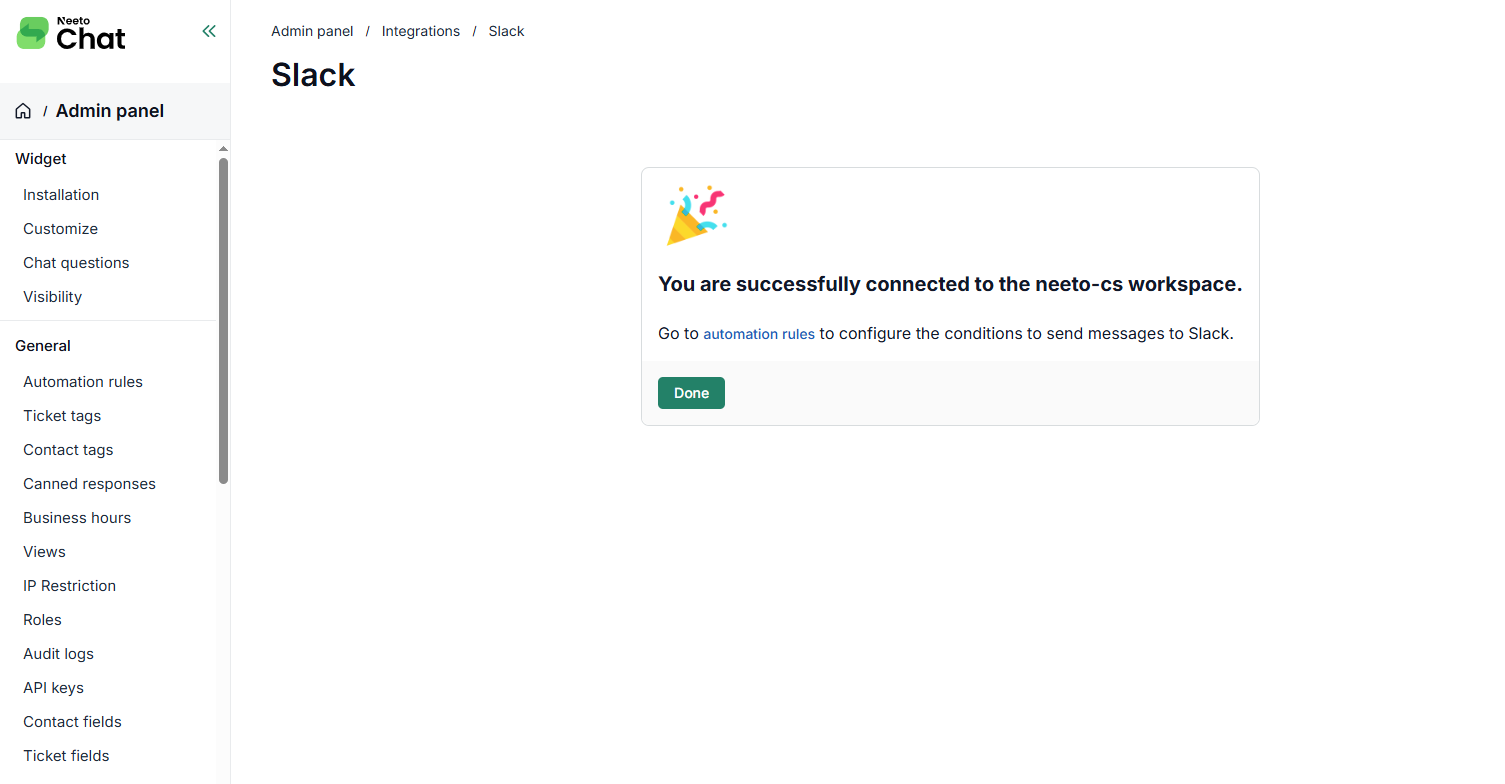
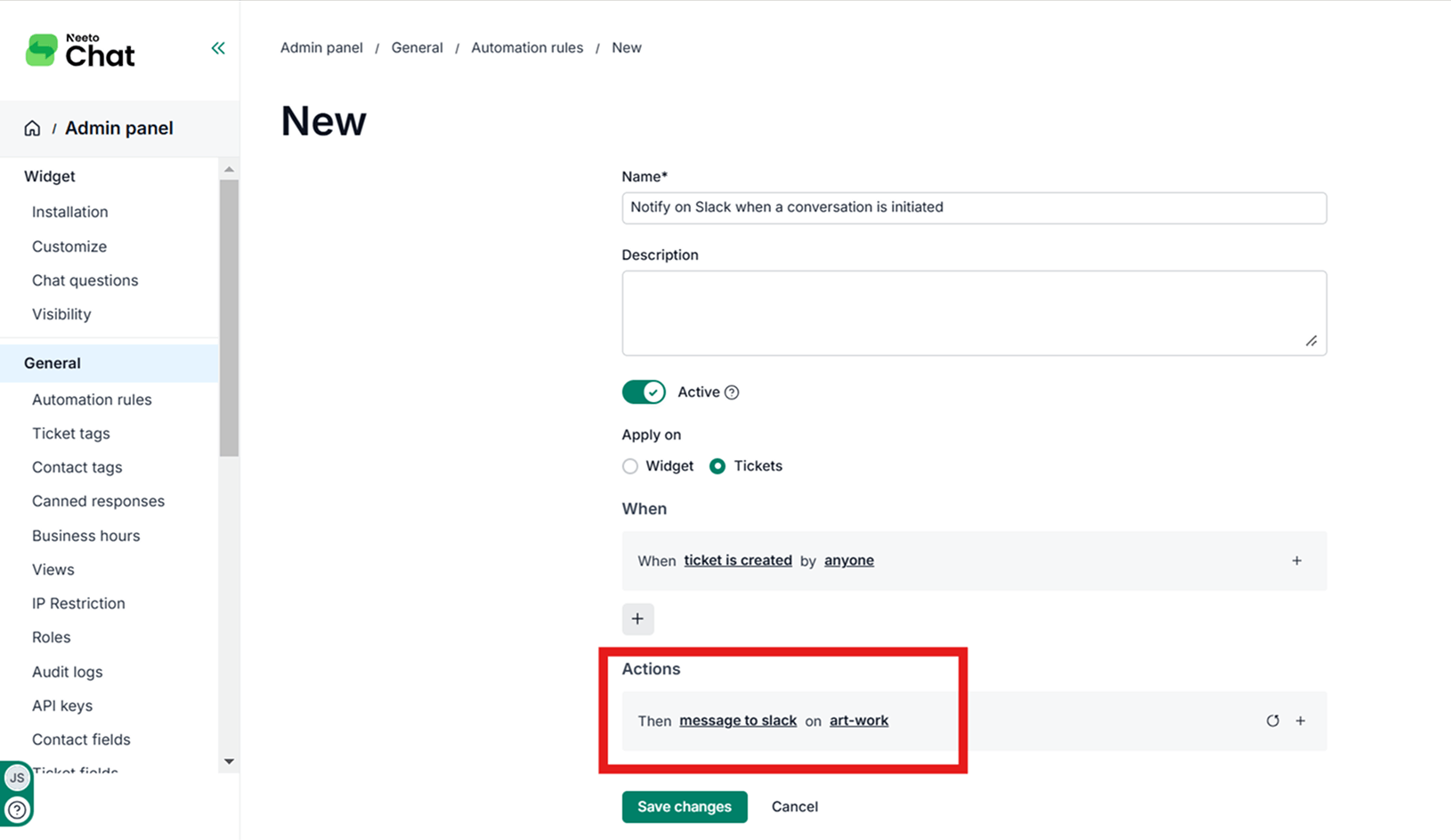
The automation rule needs to be applicable on Tickets. Select a slack-channel in Actions. Both public and private Slack channels are available for selection. For the example below, the art-work channel is selected — when a ticket is created, it will be notified in that Slack channel.
.png)
Tickets notification on Slack
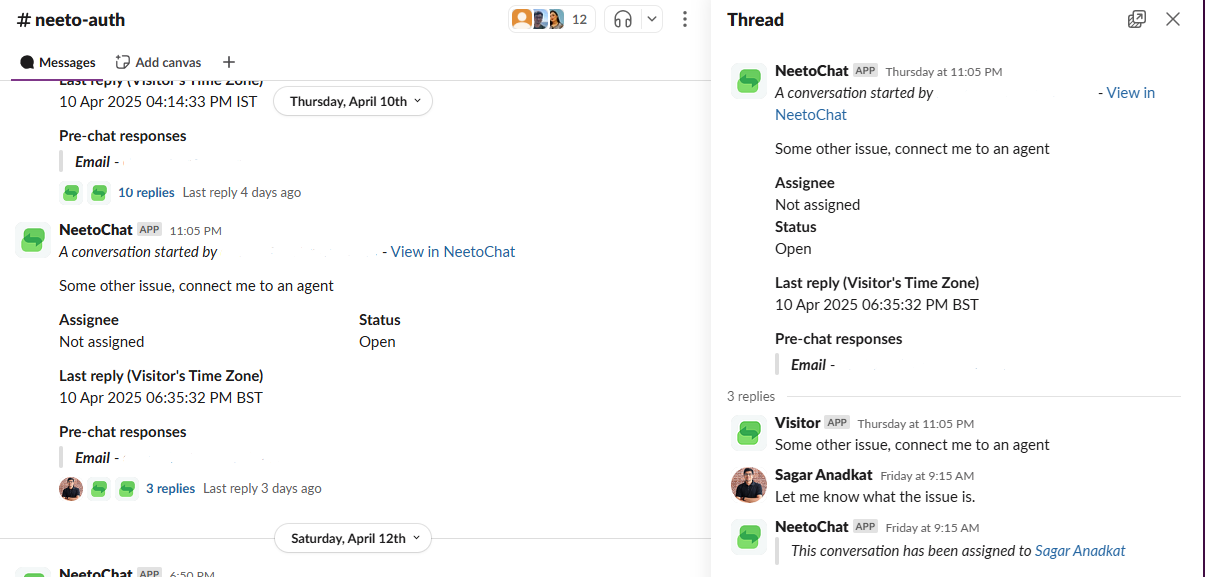
Whenever a visitor starts a new conversation from the widget (and your automation rule is configured), conversation details are sent and synced to your selected Slack channel.
For messages sent from Slack, if the workspace user is present in NeetoChat, then the If messages are sent from Slack by a user who exists in NeetoChat, the conversation will be assigned to that user. If the Slack user doesn't exist in NeetoChat, the conversation will be assigned to the user who authorized the Slack integration.

New messages from the same ticket are synced within the Slack channel's conversation threads.
Adding Notes in Slack
NeetoChat allows you to add notes using the tab. To add notes in Slack, start your message with NOTE: or Note:Notes added in Slack will appear in NeetoChat as notes (vice versa).
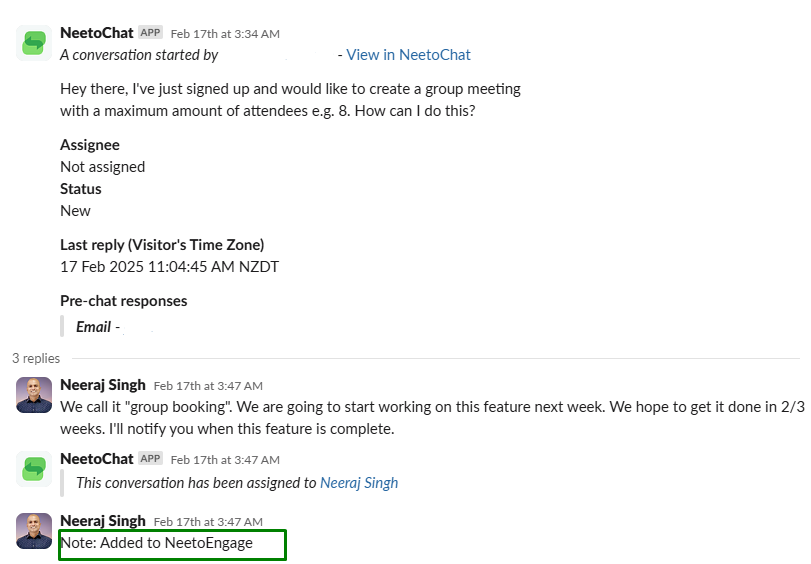
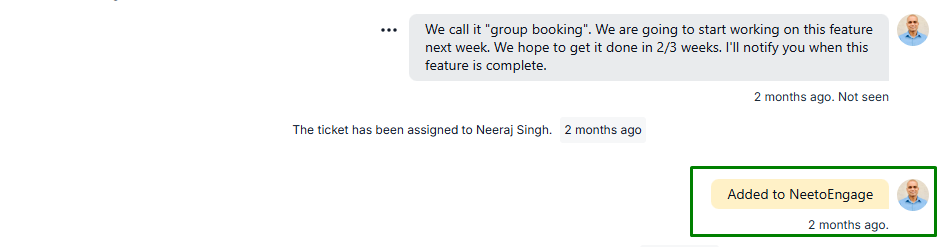
Connecting a private Slack channel
By default, only public channels from your workspace appear in the channel dropdown. To send NeetoChat notifications to a private channel, you need to add the NeetoChat app to that channel manually in Slack.
Complete the standard Slack integration steps above (Host (Self) → Slack → Connect Slack → Allow).
Open Slack and Go to the private channel where you want NeetoChat notifications to be delivered.
-
In the message box, type
/ addand select Add apps to this channel from the suggestions.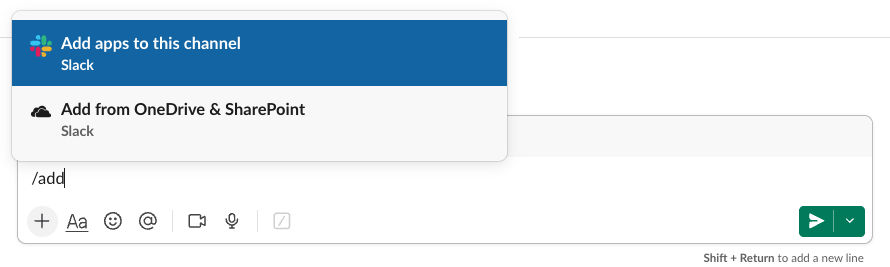
Find NeetoChat in the list and click Install.
Return to the NeetoChat Slack integration screen and click the Refresh channels list button. Your private channel now appears in the dropdown, marked as private.
Select the private channel and click Continue.
Click on Done.
NeetoChat notifications will now be delivered to that private channel.