

Business hours are the times you've told NeetoChat your team is available to chat. When a visitor opens the widget outside those hours, NeetoChat either shows them an away message with a "we'll be back at…" note or hides the widget altogether until you're back online, depending on which mode you pick.
Setting up business hours
Go to Admin Panel.
Click on Business hours.
Switch the Business hours toggle on.
Under Widget visibility, select either Hide the chat widget or Set an away message.
If you chose Set an away message, type your message in the Away message field.
From the Timezone selector, pick the timezone for your schedule.
Under Set business hours, fill in the working hours for each day.
Click Save Changes.
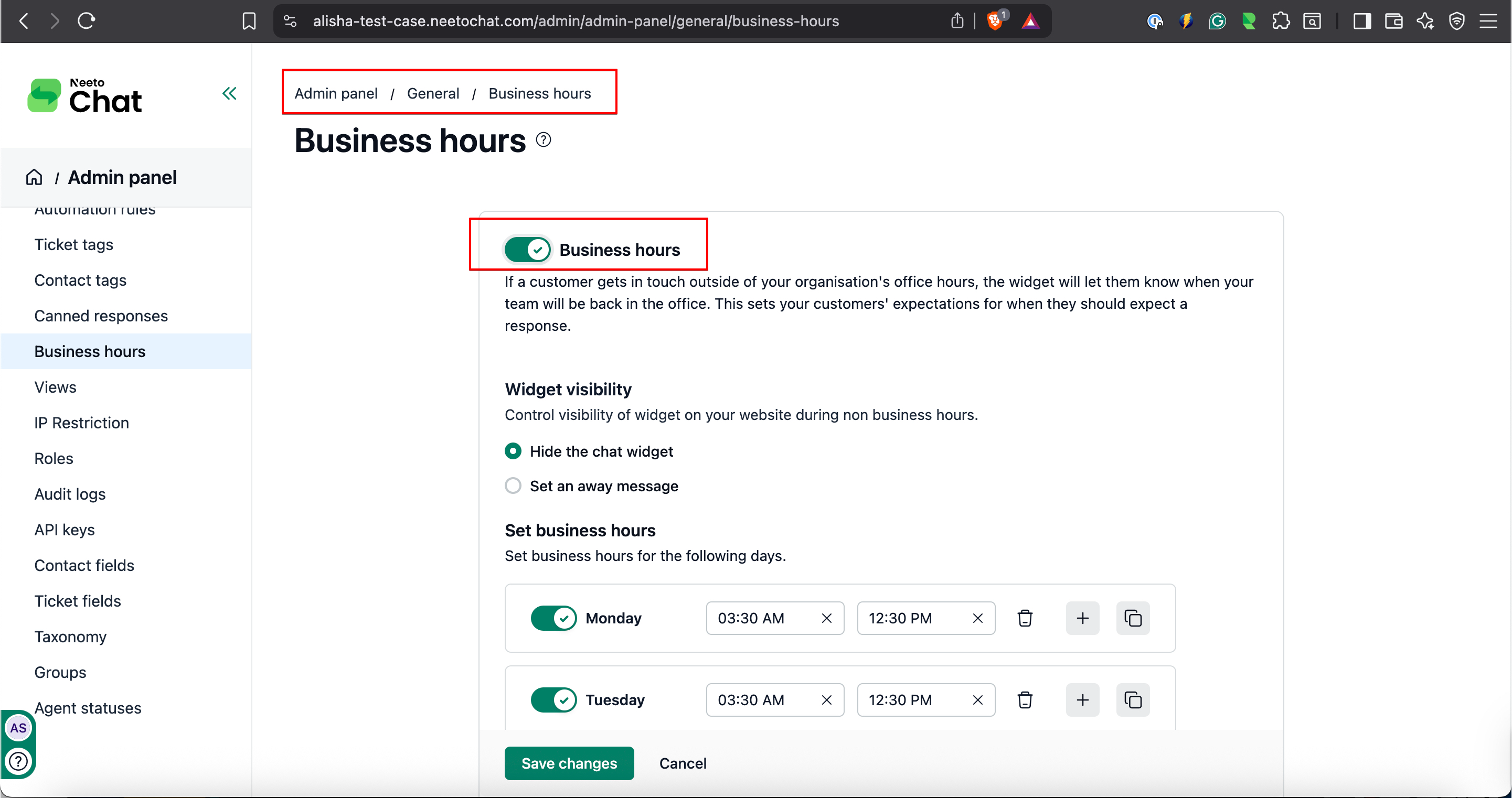
Choosing what visitors see when you're offline
You have two options under Widget visibility:
Hide the chat widget removes the widget from your site outside business hours, so visitors can't start a chat at all.
Set an away message keeps the widget visible. Anyone who opens it sees your message along with a "we'll be back at [time]" note.
Most teams pick Set an away message to collect leads instead of turning visitors away. Hide the widget if you'd rather not show a chat that nobody will reply to.
The default away message reads: Hi, We are currently away. Please leave a message and our team will reach out to you at the earliest. Rewrite it in your own voice if you'd like.
Picking a timezone
Use the Timezone selector to choose the timezone for your business hours schedule. The hours you set are interpreted in this timezone.
Go to Admin Panel.
Click on Business Hours.
Enable the Business Hours toggle.
Select the Widget Visibility State: either hide the widget during offline hours or display an away message.
Set business hours for each day of the week.
Click Save Changes.